


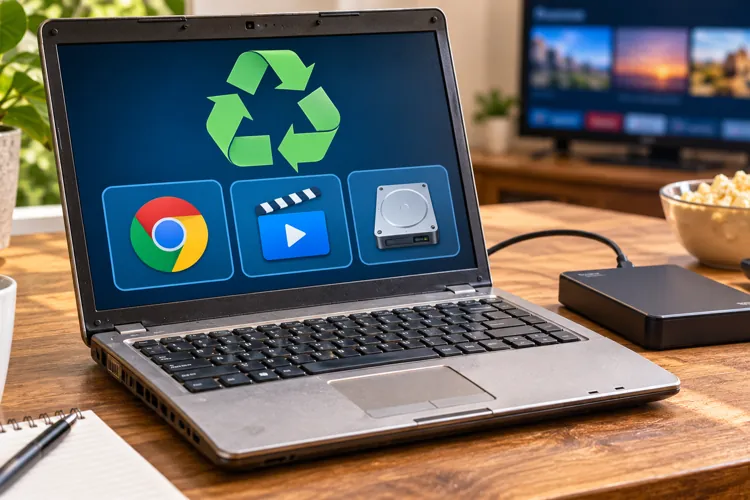

Make an old laptop useful again: Free software can breathe new life into a slow computer.
Skip buying extra equipment: Turn your laptop into a home entertainment hub or external storage.
Don't spend money unnecessarily: Sometimes the best technology upgrade is making better use of what you already own.
Have an old laptop sitting in a closet because it's too slow, outdated, or no longer supported by Windows?
Before recycling it or spending hundreds of dollars on a replacement, consider giving it another job. A recent Engadget article highlights several creative ways to do just that and repurpose an aging laptop you might have laying around.
Here are three of the most practical ideas that could actually save you money.
1. Make your old laptop feel new again — for free
Just because your computer struggles with Windows doesn't mean it's ready for the recycling bin.
Free operating systems like ChromeOS Flex and Linux can make older laptops useful again, especially if you mainly browse the internet, check email, watch videos, or use Google Docs.
If free software keeps your laptop running for another year or two, you could postpone spending $300–$600 on a replacement. Just back up your files first, since installing a new operating system can erase everything.
How to do it: Visit Google's ChromeOS Flex installation page to check whether your laptop is compatible. You'll need a USB drive to install the operating system. You can also experiment with a beginner-friendly Linux system like Linux Mint.
2. Turn it into your own streaming hub
Have a collection of downloaded movies, home videos, or music? Instead of buying a separate media server, your old laptop could handle the job.
Free software like Plex or Jellyfin lets you organize your personal media collection and stream compatible files to TVs, phones, and other devices around your home.
Not only will you avoid purchasing dedicated media-server equipment, but you’ll get more use out of the movies and music you already own.
One catch: This doesn't automatically replace Netflix or other subscriptions. You'll need your own media files, and some features may cost extra.
How to do it: Download Plex or Jellyfin, install the media-server software, and add your files. Connect your streaming devices to the same home network and follow the setup instructions.
3. Turn the hard drive into extra storage for about $25
Even if the laptop itself is beyond saving, its hard drive might still have some life left.
Many older laptops contain removable hard drives or solid-state drives that can be repurposed as external storage. All you need is a compatible USB enclosure, which often costs around $20–$30.
You could avoid buying a new external hard drive, which can cost considerably more depending on its capacity. Just be sure to check the drive's health before using it. An aging drive shouldn't be the only place you store important family photos or documents.
How to do it: Search your laptop's model number to determine whether its drive is removable and what type it uses. Then buy a compatible enclosure, install the drive, and connect it to another computer using USB.
One important thing before you start
If you plan to donate, sell, or recycle your old laptop, make sure you securely erase your personal information first.
Simply deleting files or emptying the recycle bin isn't necessarily enough. And if the laptop is truly beyond repair, look into electronics recycling programs at Best Buy, Staples, or a certified local recycler.
Your old laptop might not be worth much on the resale market, but that doesn't mean it's worthless. Sometimes the smartest way to save money on technology is to squeeze a little more life out of what you already own.