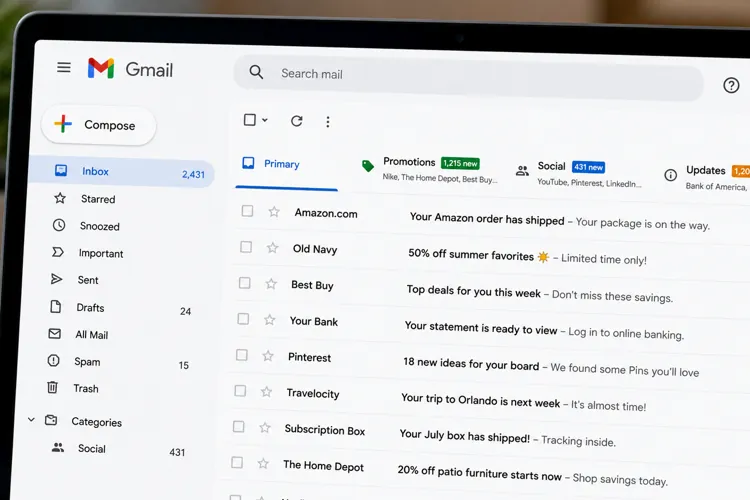

Cut inbox clutter fast. Add #sub to your Gmail URL to access Gmail's hidden Subscriptions page and unsubscribe from unwanted emails in just a few clicks.
Let Gmail do the work. Search shortcuts, labels, filters, and the built-in Unsubscribe button can organize years of email in minutes.
Treat your inbox like a to-do list. Archive emails you'll need later, delete what you won't, and use labels and snooze to keep important emails front and center.
From hidden Gmail tricks to powerful search tools, here's how to eliminate inbox clutter, manage subscriptions, and finally make Gmail work for you.
If checking Gmail feels like digging through a junk drawer, you're not alone. Between store promotions, newsletters, package updates, social media alerts, and marketing emails, the average inbox can become overwhelming surprisingly quickly.
The good news is that you don't need to create a new email address or spend hours deleting emails one-by-one.
Here are six powerful (but often overlooked) Gmail features that can dramatically clean-up your inbox.
1. Add #sub to your Gmail URL

Here's one of Gmail's best-kept secrets. While logged into Gmail, simply add #sub to the end of your Gmail URL and press Enter.
For example:
From:
https://mail.google.com/mail/u/0/#inbox
To:
https://mail.google.com/mail/u/0/#sub
This will take you to Gmail’s somewhat hidden Subscriptions page, where all of your recurring email subscriptions are gathered into one convenient list.
This eliminates the need to search for newsletters or company subscription emails one by one. The you can quickly see who's filling your inbox (and how often) and unsubscribe with just one click.
Pro tip: Start with the companies that send you the most emails. Unsubscribing from just five or six of those frequent senders can dramatically reduce your daily inbox clutter.
2. Use Gmail's built-in Unsubscribe button
You don't have to scroll to the tiny unsubscribe link at the bottom of every marketing email.
For many legitimate newsletters, Gmail displays an Unsubscribe button next to the sender's name at the top of the message. One click removes you from future marketing emails without ever leaving Gmail.
Important: If an email looks suspicious or appears to be phishing, don't click unsubscribe. Mark it as spam instead.
3. Find out who’s flooding your inbox
Before deleting anything, identify the senders creating the most clutter.
Search Gmail for a retailer, newsletter, social network, or delivery service you frequently see. Try the company name first, then search the sender’s email address if the results are too broad.
You can also use searches such as:
category:promotions
category:social
from:retailer@example.com
list:newsletter@example.com
unsubscribe
Gmail’s Promotions category, for example, is specifically designed for deals, offers, and marketing emails, while Updates typically holds automated confirmations, statements, and reminders. Try reviewing one category at a time and it will make the cleanup feel far less overwhelming.
Once you find a repeat offender, don’t simply delete its latest email. Search for every message from that sender, unsubscribe, and then remove the backlog.
On desktop, select the checkbox above the search results. Gmail may initially select only the messages visible on that page, so look for an option to select all conversations matching the search before deleting or archiving them.
Pro tip: Start with the retailers and newsletters sending several emails per week. Removing five aggressive senders may reduce more clutter than unsubscribing from 25 occasional newsletters.
Be careful not to bulk-delete messages from banks, insurers, utilities, schools, medical providers, or tax services until you’ve checked whether they contain records you may need.
4. Master Gmail’s search shortcuts
Gmail’s search bar can do much more than find a sender’s name. It lets you quickly narrow messages by date, size, status, category, recipient, and attachment type. And you can actually combine multiple search filters in one search.
Useful cleanup searches include:
older_than:2y — give you messages older than two years
category:promotions older_than:6m — older marketing emails
is:unread older_than:1y — long-ignored unread messages
larger:10M — messages larger than 10 megabytes
has:attachment larger:5M — large messages with attachments
filename:pdf older_than:3y — older PDF attachments
from:example.com older_than:1y — older messages from one company
before:2025/01/01 — anything received before a specific date
has:drive — messages containing Google Drive links
Once you narrow down your search, you can then start organizing the emails that you want to keep.
5. Know when to archive, delete, snooze, or mute
These four Gmail actions solve different problems, but many people use only Delete.
Archive removes a message from the inbox while keeping it in your account. It remains searchable, and if someone replies to the conversation, it returns to the inbox.
Archive the following:Receipts you may need later
Travel confirmations from completed trips
Work conversations that are finished
Warranty information
Financial notices worth retaining
Delete messages that have no future value, such as expired promotions, duplicate shipping alerts, and outdated newsletters.
Snooze messages that matter but don’t require your attention today. Gmail will temporarily remove them and return them to the inbox at the date and time that you choose.
Mute long group threads you no longer need to follow. Future replies generally skip the inbox and go directly to the archive, although Gmail will bring them back if someone directly addresses you.
Pro tip: Treat your inbox as a to-do list, not as permanent storage. When a message no longer needs your attention, consider archiving it or deleting it.
6. Use a small, practical label system
Labels can help, but creating dozens of them may simply replace inbox clutter with label clutter.
Unlike traditional folders, Gmail labels can overlap. One message can carry several labels — for example, Travel, Receipts, and Taxes — without requiring multiple copies. Google allows users to create labels, nest them, apply more than one to a message, and combine them with filters.
Start with a short list of labels based on the emails you retrieve regularly.
In my experience, here are the labels worth creating:
Action required
Bills
Receipts
Travel
Taxes
Medical
School
Work
Warranties
Definitely try to avoid labels for every retailer, acquaintance, or temporary project, as you end up with too many. Using Gmail search to find those emails is usually a better solution.
Pro tip: Consider setting a personal inbox limit to keep things under control. This could be something like 25 or 50 emails. Then when the total rises above your number, spend a few minutes archiving and deleting until you’re back under control.