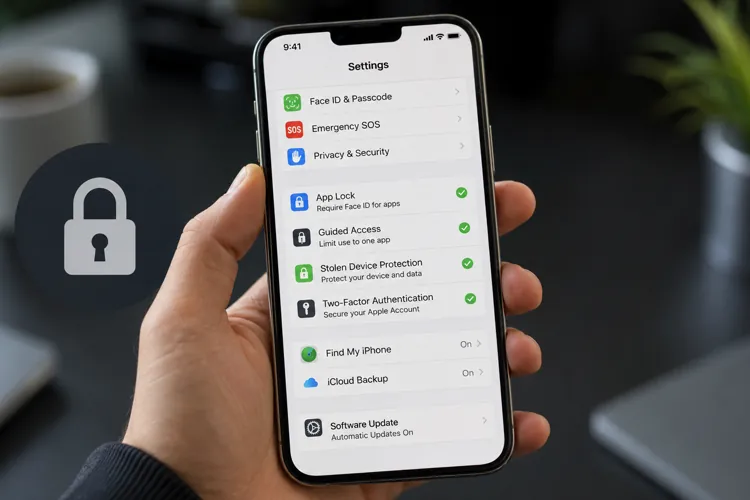

Add Face ID to sensitive apps: Put an extra lock on banking, payment, email, and other apps that could expose your money or personal information.
Turn on Apple's built-in protections: Guided Access and Stolen Device Protection can limit what someone can do if they borrow or steal your phone.
Check who already has access: Safety Check lets you review the people, apps, and devices that can access or receive information from your iPhone.
Your iPhone isn't just a phone anymore.
It typically contains access to your bank accounts, credit cards, email, photos, passwords, and payment apps. This means handing an unlocked phone to the wrong person (or having it stolen) can potentially expose much more than your contact list.
Vanessa Cruz at KCRA-News recently highlighted several built-in iPhone security features that many users overlook, including app-level Face ID, Guided Access, and Stolen Device Protection.
The good news is you don't need to download another security app to use them.
Grab your iPhone and check these settings now.
Use Face ID to put a second lock on money apps
Even if someone has your unlocked iPhone, you can require Face ID before they'll be able to open certain apps.
That's particularly useful for banking, investing, and payment apps like Venmo.
Here's how to do it:
Find the app on your Home Screen.
Press and hold its icon.
Tap Require Face ID.
Confirm.
Now try opening the app yourself to make sure the extra protection is working.
Pro tip: Don't stop with your banking app. Consider protecting email, password managers, payment apps, and any other app that could potentially be used to reset passwords or access financial information.
Lending someone your phone? Lock them into one app
Someone approaches you and asks to borrow your phone to make an emergency call.
You want to help, but you also don't necessarily want to hand a stranger an unlocked device containing your digital life.
That's where Guided Access comes in.
On your iPhone, go to Settings > Accessibility > Guided Access, turn it on and create a passcode.
Then, when you want to lend someone your phone, open the app you want them to use and triple-click the side button to start Guided Access.
At that point, they can use that app only, and can’t freely browse through the rest of your phone.
This is also useful when handing an iPhone to a child to play a game or watch a video.
Pro tip: Set up Guided Access now rather than waiting until you need it. The worst time to figure out an unfamiliar security feature is while a stranger is standing in front of you asking to borrow your phone.
Turn on Stolen Device Protection
This is one I'd check today.
A thief who steals your iPhone and knows your passcode can potentially do much more damage than someone who simply steals the device.
Apple's Stolen Device Protection adds additional security requirements for sensitive actions when your iPhone is away from familiar locations.
Go to:
Settings > Face ID & Passcode > Stolen Device Protection
Then turn it on.
Also make sure Find My iPhone is enabled.
Pro tip: Under Stolen Device Protection, Apple provides an option to require the additional security delay Always rather than only when you're away from familiar locations. If you want the strongest protection, consider that setting.
Check your Apple Account's two-factor authentication
Your Apple Account can provide access to an enormous amount of personal information, so protecting the phone itself isn't enough.
KCRA also recommends making sure two-factor authentication is enabled.
Go to: Settings > your name > Sign-In & Security > Two-Factor Authentication
Then check the trusted phone number associated with your account.
That last step matters. A security feature isn't particularly helpful if the recovery number belongs to a phone you stopped using three years ago.
See who and what has access to your iPhone
Here's a privacy check that's easy to forget.
Your iPhone may be sharing information with more people and apps than you realize.
Apple's Safety Check lets you review who you're sharing information with, which apps have access to your data, and which devices are connected to your Apple Account.
Go to: Settings > Privacy & Security > Safety Check
Then select Manage Sharing & Access.
Work through the screens and look for people, apps, or devices you no longer recognize or want connected.
Pay particular attention to old iPads, Macs, or other devices you no longer own. Also review apps that have access to sensitive information such as your location, photos, contacts, and Bluetooth.
Safety Check also includes an Emergency Reset option that can immediately stop sharing information with people and apps. That's designed for situations where you believe your personal safety may be at risk, rather than for a routine security check.
It’s smart to make this an occasional digital “spring cleaning” task. Apps and devices can accumulate over the years, and someone you gave access to long ago may no longer need it.
Do the “stolen tonight” test
Here's an easy security audit: Pretend your phone disappears tonight. What would you wish you'd done yesterday?
First off, make sure that automatic software updates are enabled and your important information is backed up.
Then think about what someone could access if they somehow got past your lock screen. Banking? Venmo? Email? Saved passwords?
Then start adding additional Face ID protection where it makes sense.
And make sure you know your Apple Account credentials rather than relying entirely on information stored on the phone that's now missing.
Always be careful when handing over an unlocked phone
If a stranger asks to borrow your phone, keep in mind that you don't have to hand it over in order to help them out.
You can offer to place the call yourself, put it on speaker, or use Guided Access before handing over the device.
The same principle applies when someone asks to "quickly check something."
Your phone contains far more personal information than your wallet ever did and a person that knows what they are doing can access sensitive data quickly.