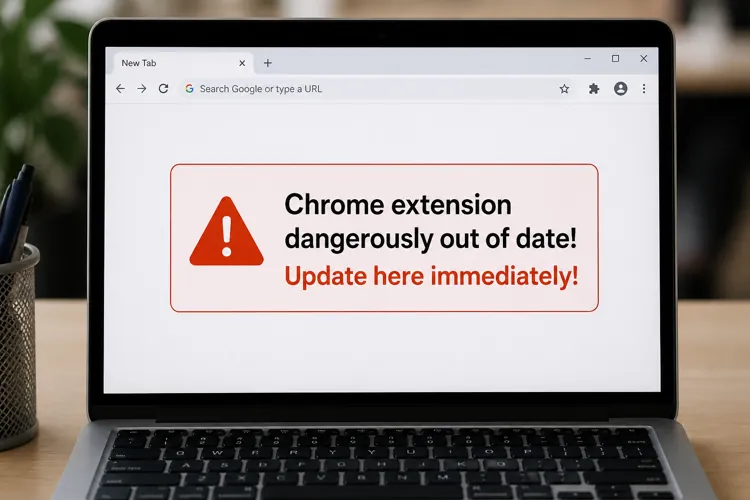

Fake Chrome update warnings can appear on compromised legitimate websites and are designed to trick users into installing malware.
Real Chrome updates normally download automatically and can be verified through Chrome’s “About Google Chrome” menu.
Anyone who runs a fake update should disconnect the device, scan it for malware, and change important passwords from a clean device.
A warning that suddenly appears while browsing the internet may claim that Google Chrome is dangerously out of date and must be updated immediately. But clicking the prominent “Update” button could install malware instead of a security patch.
The fake Chrome update scam is a recurring cyberattack that uses Google’s familiar logo, colors, and browser design to appear legitimate. Some versions tell users that an urgent security update is required, while others claim a video or webpage cannot be displayed until the browser is upgraded.
In reality, the warning is part of the webpage — not a message from Chrome.
Cybercriminals may place these warnings on websites they control, distribute them through malicious online advertisements, or inject them into legitimate websites that have been compromised. That means consumers can encounter the scam even when visiting a site they have used safely in the past.
The goal is usually to persuade the visitor to download and open a file with a plausible name such as “ChromeUpdate.exe” or “GoogleChromeSetup.” Security researchers have linked fake browser updates to SocGholish and other malware-delivery campaigns.
Once opened, the file may install an information stealer, remote-access program, or other malicious software. Depending on the malware, criminals may be able to collect saved passwords, browser cookies, financial information, and cryptocurrency-wallet data. Stolen browser cookies can be particularly dangerous because they may allow an attacker to enter an account without going through the usual login process.
Some campaigns use a related technique known as ClickFix. Instead of downloading a conventional installer, the webpage tells visitors to copy and run a command to repair or update the browser. Microsoft warns that such instructions can cause users to unknowingly execute malicious code on their own computers.
How genuine Chrome updates work
Knowing how Chrome is really updated can keep you out of trouble. Google says Chrome ordinarily downloads updates in the background. The update is generally applied when the user closes and reopens the browser. It’s not necessary to click a link.
Consumers can safely check for an update by opening Chrome’s three-dot menu and selecting Help, followed by About Google Chrome. Chrome will then check for an update and may display a “Relaunch” button to install it.
A webpage that downloads an update file, asks the user to run a computer command, or directs an Android user to install an APK file outside the Google Play Store should be treated as suspicious. Google’s official instructions do not require users to respond to an update notice embedded in an unrelated website.
Other warning signs include:
A countdown clock or claims that immediate action is required
A warning that takes over the entire screen or makes the browser difficult to close
Instructions to disable antivirus protections
Requests to bypass a Windows or macOS security warning
A website address that has no connection to Google
Instructions to paste text into PowerShell, Command Prompt, or the Windows Run box
Consumers who encounter such a page should avoid clicking its buttons. Closing the tab or browser is usually enough. If the page prevents that, Windows users can open Task Manager with Ctrl+Shift+Esc and end the browser task. Mac users can use the Force Quit menu.
What to do if you clicked
Downloading a suspicious file does not necessarily mean it was installed. If the file was never opened, delete it, empty the Recycle Bin or Trash, and run a security scan as a precaution.
The situation is more serious if the file was opened or if commands supplied by the website were executed. The user should disconnect the computer from the internet and run a full scan with an updated security program. Microsoft Defender includes full-scan and offline-scan options on Windows.
Passwords should then be changed from a different, trusted device, beginning with the primary email account because it can often be used to reset other passwords. Banking, payment, social media, and shopping accounts should follow.
Users should also sign out of active sessions, turn on multifactor authentication, and review accounts for unfamiliar activity. A password change alone may not remove an intruder who has stolen an active session cookie.
Anyone who discovers unauthorized financial transactions should contact the bank or card issuer immediately. Losses or attempted account takeovers can also be reported to the FBI’s Internet Crime Complaint Center.
The safest rule is simple: never install a Chrome update offered by a webpage. Check for it from inside the browser itself.