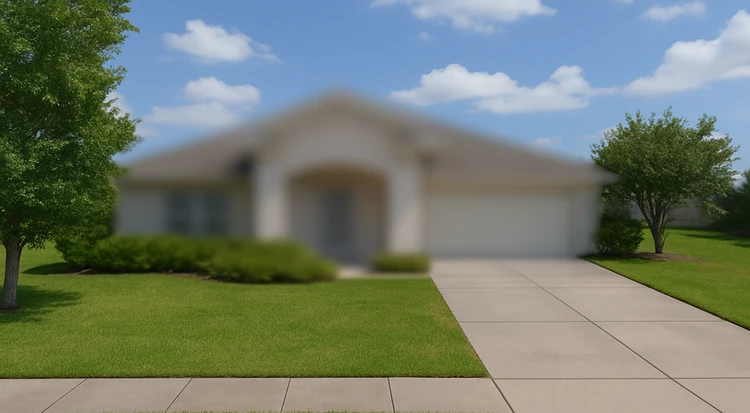

- You can ask Google to blur your home in Street View so strangers can’t zoom in on your doors, windows, cars, or kids’ play areas
- Do it on a computer: open your address in Street View → click “Report a problem” → drag the box over your house → tell Google exactly what to blur → submit
- Once Google approves it, the blur is permanent, so be sure you want your home hidden before you send the request
You can look up almost anyone’s house on Google Maps in a few seconds. That’s convenient when you’re trying to find a friend’s place… and a little creepy when you realize strangers can do it to you, too.
That’s why some homes show up blurred in Street View: the owners asked Google to do it. And yes, you can do the same. Here’s why blurring your home is worth considering, and exactly how to request it.
Why people blur their house
The main reason people blur their house if for privacy and safety concerns. Street View doesn’t just show an address, it can show windows, doors, side gates, even what kind of car you parked in the driveway. This is very easy to access information for the wrong person.
- Burglars can see where entry points are or whether there’s a gate.
- Stalkers can confirm they’ve got the right house.
- If you have kids, high-value items in the garage, or a home office in the front window, you probably don’t want that visible to just anyone.
Blurring isn’t a complete fail-safe, but it definitely removes a very public source of information about your house.
What blurring actually does
When Google approves your request, the house (or license plate, or faces) you selected will appear permanently blurred in Street View. Someone can still see the general area and street on the map, but the front of your home won’t be clearly visible.
It’s also worth noting that according to Google, the blur is permanent and can’t be undone, so be sure you really want it hidden.
How to blur your house on Google Maps
You can’t do this from the mobile app, so you’ll need to use a laptop or desktop computer to make it happen. Here are the steps:
1. Go to Google Maps in a browser (maps.google.com).
2. Type in your address and drop into Street View (little yellow person icon, or click the Street View thumbnail).
3. At the bottom right of the Street View screen, click “Report a problem.” Look closely, it’s in a tiny font.
4. You’ll see the Street View image with a red box. Position that box over the part you want blurred — your whole house, the garage, even a car or license plate. Use zoom if needed.
5. In the form, pick what you want blurred: “My home,” “A face,” “My car/license plate,” etc.
6. Describe it clearly. Tell Google “blur the entire front of the house at [address] including the driveway.” The more specific, the better.
7. Enter your email and submit.
Google will then email you to say they got the request and will review it. Sometimes they ask for more detail and sometimes they just approve it. Once approved, your house will show up blurred in Street View.
When blurring is especially smart
In these scenarios, removing easy visuals of your home is an especially good idea.
- You’ve had harassment or stalking issues in the past.
- Your home shows kids’ play areas or easily identifiable entry points.
- You run a home business and don’t want customers or strangers to see where you live.
- You own a high-value vehicle that always sits in the driveway.
A few things blurring doesn’t fix
Keep in mind that blurring your Street View doesn’t remove your address from the internet, and it doesn’t stop people from taking photos in public.
It just removes one of the most common, free, high-resolution views of your house that anyone can pull up.
So, think of it like locking a gate. People might still know you live there, but they can no longer see straight in.